
Stay alert! If you don't see any functionality described in the tutorial within the system, don't worry. This is due to your access profile and the plan contracted by your company.
The Safer Report Channel is a place for reporting information about risky behaviors, potential operational problems, and other failures that could compromise the security of the company's assets, employees, and information.
.png?width=392&height=304&name=image%20(1).png)
Accessing the Channel
.png?width=670&height=292&name=image%20(2).png)
After setting up the company channel and the team that will manage the reports, it will be available on the card.
1. Click on access the channel to view it.
Submitting a Report
2. Select the icon to agree to the terms of use and privacy policy.
.png?width=670&height=288&name=image%20(3).png)
3. Choose whether or not to identify yourself.
4. If you choose to identify yourself, fill in the information on the form.
.png?width=670&height=286&name=image%20(4).png)
5. If you choose not to identify yourself, you can leave a contact email.
.png?width=670&height=288&name=image%20(5).png)
6. Click next.
.png?width=670&height=286&name=image%20(6).png)
7. Fill in the initial details of the report.
8. Click next.
.png?width=670&height=286&name=image%20(8).png)
9. Describe what happened with as many details as possible. Indicate if there were any involved parties and their roles, and if you have any evidence, upload the file.
10. Click next.
.png?width=670&height=281&name=image%20(7).png)
11. Fill in the additional information, including a password to track it later.
12. Click save.
.png?width=670&height=438&name=image%20(9).png)
Once you have completed the form, you will receive a protocol number to track the report. This should be done along with the registered password. Keep this record!
Managing Reports
Once the Safer Report Channel is configured, one or more people (up to 5) will be report administrators.
Report managers can view all reports except those they are potentially involved in. Standard managers can see all reports.
13. If you are an administrator, log in with your access credentials..png?width=670&height=286&name=image%20(10).png)
After logging in, you will see the reports menu.
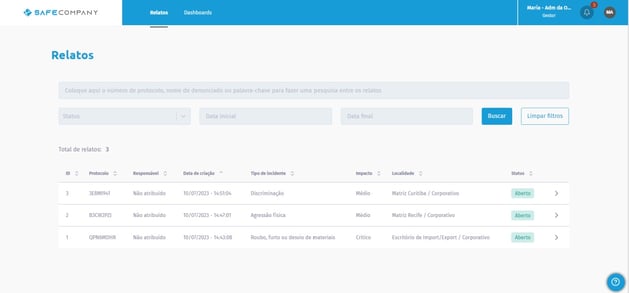
14. Select the desired report to view the details.
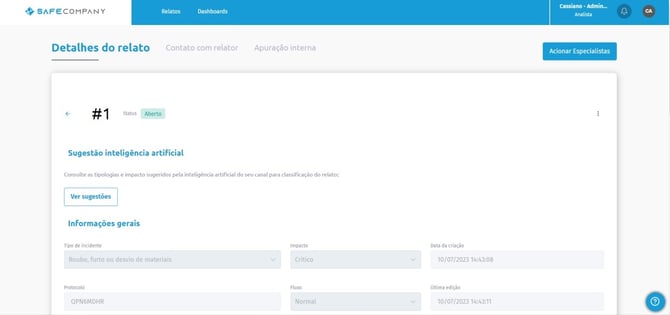
When you click, you will have access to the information that was filled out in the report.
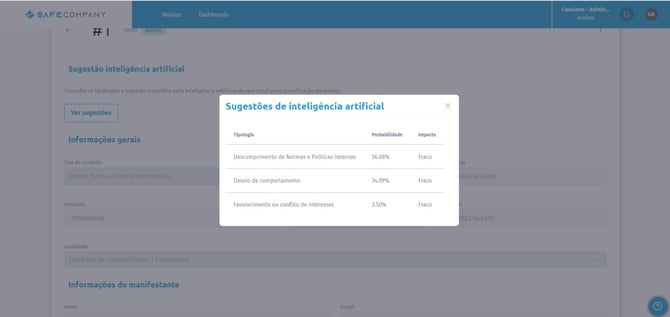
15. Click on see suggestions to consult the system about the best categorization of the report.
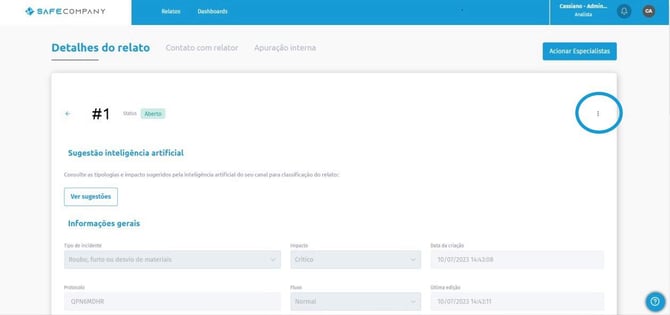
16. Click on the three dots on the side to view the report history, generate a PDF, take on the case investigation, or delegate the investigation to another administrator user.
Contacting the Reporter
On the next screen, you can send a message to the reporter thanking them, requesting more information, or discussing the conclusion of the report.
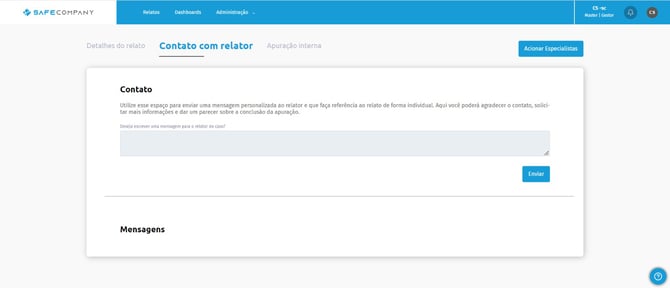
17. Write your message and click send.
Just below, you will see the history of these interactions.
Internal Investigation
Use this space to record comments about the investigation process and document the findings and conclusions after the investigations.
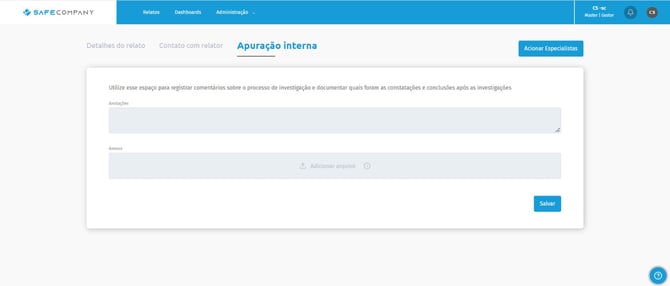
18. Make the notes.
19. Include attachments if there are any.
20. Click save.
Engaging Specialists
Use this feature to request our support in investigating this report.
21. Select the type of your request and what you need support with.
22. Add attachments if there are any.
23. Click send.
After that, our consultants will get in touch to understand a bit more about your needs and provide support in the investigation.