
How to register events
-3.png?width=670&height=286&name=SC%20-%20Atividades%20-%20Tarefas%20(9)-3.png)
1. On the sidebar, hover over the risk management module and click on events.
2. Upon accessing the events page, click +add to create a new record.
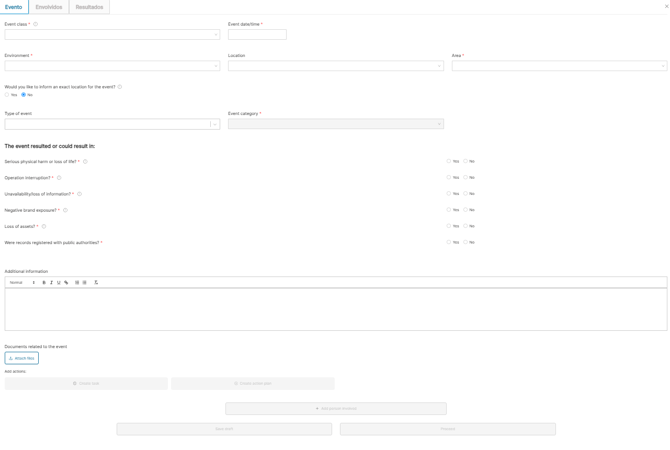
- Event class
- Date and time
- Environment
- Locality
- Area
- Type
- Results or potential outcomes
- Additional information, if any
- Documents, if any
Once the event is created, you can create a task and, depending on your profile, also create an action plan.

After filling in the information on the initial events page, choose whether you want to proceed, add person involved, or save the draft to finish filling it out later.

On the second page of the event, you can add a person involved, if you wish.
-2.png?width=648&height=160&name=SC%20-%20Atividades%20-%20Tarefas%20(10)-2.png)
4.Click on + add person involved.
-2.png?width=640&height=33&name=SC%20-%20Atividades%20-%20Tarefas%20(11)-2.png)
5. Click on > to open the involved party form, or on the trash can icon on the right side to delete the field and proceed without involved parties.
6. If there is someone involved in the event, fill in the mandatory fields, qualification and name, and add additional information if desired.

7. After completing the form, click on save draft to continue later, or click on proceed to advance to the last page of the event.
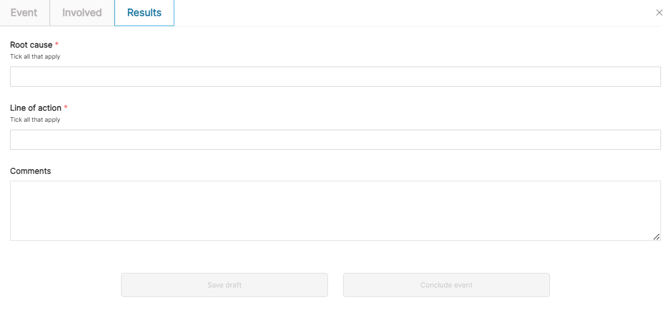
8. On the last page, you will identify the root cause and the line of action of the created event. If necessary, add observations.
9. Click on save draft to fill out later or finalize the registration by clicking on conclude event.

The generated event will appear on the main page indicating the Identifier number, locality of the occurrence, date/time, event class, type, impact, and its status.
Event History
.png?width=670&height=432&name=SC%20-%20Registro%20de%20eventos%20(27).png)
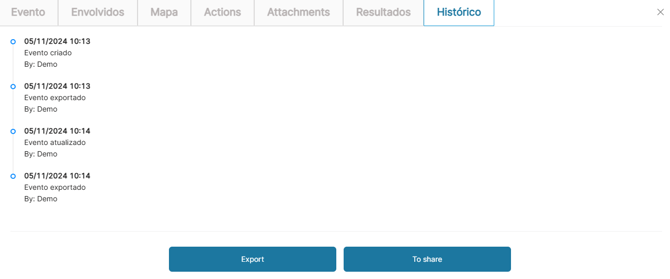
When you click on the event, you will have access to all the information recorded in it. Additionally, you can view the event history, which details the shares, edits, and exports made, as well as the users responsible for these actions. Please note:
How to share an event
.png?width=670&height=214&name=SC%20-%20Registro%20de%20eventos%20(28).png)
10. In actions, click on the + more.
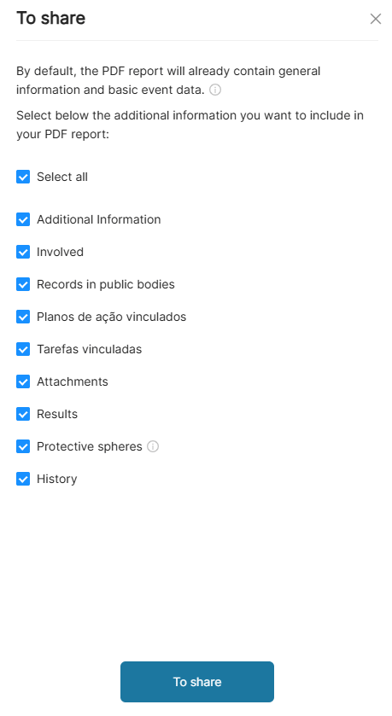
11. Select which fields you want and click on the to share.
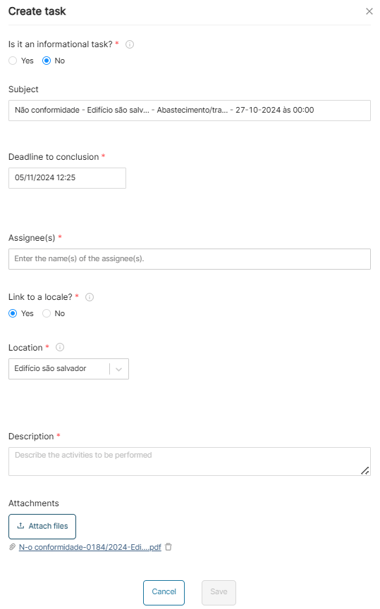
13. Fill in the required fields for sharing or, if you prefer, all the fields.
14. Press save to complete the sharing.
How to export an event in PDF
.png?width=670&height=214&name=SC%20-%20Registro%20de%20eventos%20(29).png)
15. On the main events page, choose the event you want to export and click + more.
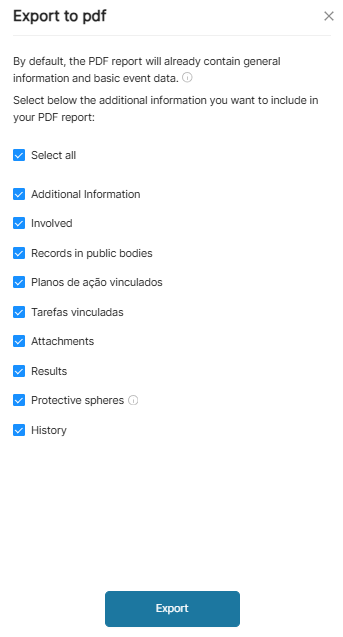
16. Click on export to PDF, select the information you want to export, and click export.
How to export an event to Excel
.png?width=670&height=163&name=SC%20-%20Registro%20de%20eventos%20(30).png)
17. Select the basic and advanced filters you want.
18. Click on export to Excel.
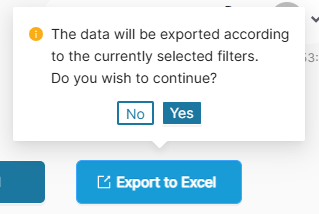
19. Click Yes.
.png?width=670&height=325&name=SC%20-%20Atividades%20-%20Tarefas%20(18).png)
20. On the sidebar, hover over the Administration module and click on Downloads.
21. Wait for the platform to finish loading the selected information.
.png?width=670&height=178&name=SC%20-%20Atividades%20-%20Tarefas%20(19).png)
22. Click on download.
How to delete an event
Events can only be deleted by organization administrators or locality managers. Locality managers can only delete events in the localities they are assigned to
.png?width=670&height=287&name=SC%20-%20Atividades%20-%20Tarefas%20(16).png)
23. Click on the + more icon, to the right of the event.
24. Click on delete.
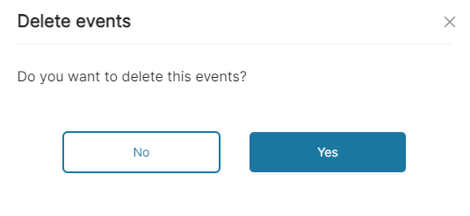
26. Press yes to delete the event.