
Some phone models do not have the automatic update function for installed apps. Therefore, it's crucial to check your device settings and enable this option if available. Here's how to do it:
Android
1. Open the Google Play Store app.
2. Tap on your profile icon located in the upper right corner of the screen.
-1.png?width=338&height=678&name=C%C3%B3pia%20de%20SC%20(1)-1.png)
-1.png?width=338&height=700&name=C%C3%B3pia%20de%20SC%20(2)-1.png)
4. Tap on Network preferences and then select Auto-update apps.
5. Choose the option: Over any network to allow updates via Wi-Fi or mobile data, or Over Wi-Fi only to allow updates only when connected to a Wi-Fi network.
iOS
6. Tap on the Settings icon.
-1.png?width=338&height=698&name=C%C3%B3pia%20de%20SC%20(3)-1.png)
7. Tap on App Store.
.png?width=338&height=542&name=C%C3%B3pia%20de%20SC%20(5).png)
8. Under Automatic Downloads, ensure that the App Updates option is selected.
If your device does not provide the option to update apps automatically, you will need to perform the process manually and stay informed about updates. Here's how to do it:
9. Go to your app store and search for SafeCompany or use the link https://play.google.com/store/search?q=safecompany&c=apps.Android
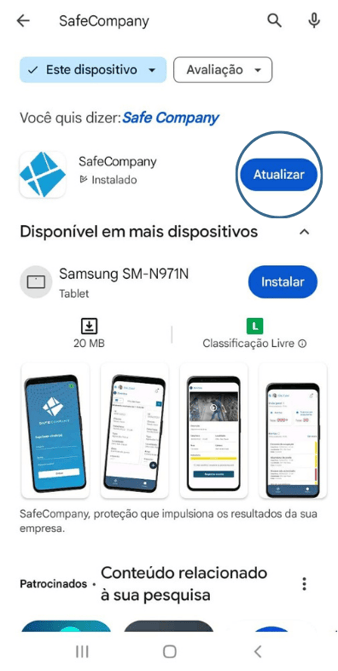
10. Tap on Update and wait for the download to complete.
iOS
11. Go to your app store and search for SafeCompany or use the link https://apps.apple.com/br/app/safecompany/id6445924054.
.png?width=338&height=695&name=C%C3%B3pia%20de%20SC%20(6).png)
12. Whenever the icon shows Update, tap it and wait for the download to complete.
Stay alert: To ensure the best performance of the app, it's essential to keep it updated with the latest version available. This ensures you have access to the latest features and improvements.