
Use chat for more secure internal and external communications.
How to create a chat
-Jul-09-2024-03-00-46-7340-PM.png?width=670&height=60&name=SC%20-%20Atividades%20-%20Tarefas%20(3)-Jul-09-2024-03-00-46-7340-PM.png)
1. Click on the chat icon in the upper menu.
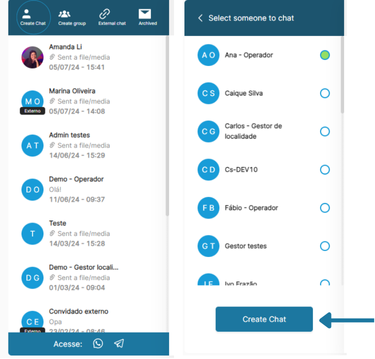
2. Click on create chat and select the user you want to chat with.
3. Send text messages, voice notes, and attachments to the chosen contact.
Messages sent in this chat are encrypted and will be automatically deleted after 90 days.
How to create a group
-Jul-09-2024-03-16-09-2192-PM.png?width=375&height=361&name=SC%20-%20Atividades%20-%20Tarefas%20(2)-Jul-09-2024-03-16-09-2192-PM.png)
4. Click on create group and select the people who will be part of it, then click proceed.
-Jul-09-2024-03-19-38-0529-PM.png?width=210&height=359&name=SC%20-%20Atividades%20-%20Tarefas%20(3)-Jul-09-2024-03-19-38-0529-PM.png)
5. Give the group a name and/or add an image, then click create group.
Messages sent in this group are encrypted and will be automatically deleted after 90 days.
How to create an external chat
An external chat is a secure way to communicate with people who are not platform users or part of your organization. Follow these instructions to use it.
-Jul-09-2024-05-12-24-4085-PM.png?width=481&height=337&name=SC%20-%20Atividades%20-%20Tarefas%20(4)-Jul-09-2024-05-12-24-4085-PM.png)
6. Click on external chat and fill out the form with the name, email, and message you want to send to an external contact.
The chosen contact will receive an email with a link to access a conversation that is encrypted and will be automatically deleted after 90 days.
How to delete a conversation
-Jul-09-2024-05-16-05-0456-PM.png?width=662&height=248&name=SC%20-%20Atividades%20-%20Tarefas%20(5)-Jul-09-2024-05-16-05-0456-PM.png)
7. To delete a conversation from your chat and the recipient's, click and hold the sent message for two seconds.
8. After this process, select one or more messages and click the delete option in the bottom center of the screen.
Archived messages
-Jul-09-2024-06-01-54-6157-PM.png?width=655&height=245&name=SC%20-%20Atividades%20-%20Tarefas%20(6)-Jul-09-2024-06-01-54-6157-PM.png)
9. To archive a message in your chat, click and hold the sent message for two seconds.
10. After this process, select one or more messages and click to file option in the bottom center of the screen.
Archived messages are encrypted and will NOT be automatically deleted.
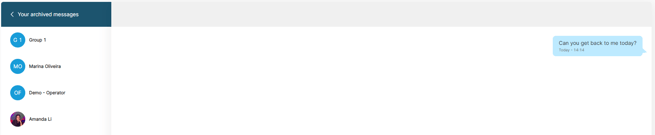
All these messages can be accessed by clicking on the archived icon.
How to use WhatsApp and Telegram more securely
-Jul-09-2024-06-05-54-6779-PM.png?width=247&height=360&name=SC%20-%20Atividades%20-%20Tarefas%20(7)-Jul-09-2024-06-05-54-6779-PM.png)
11. To open a secure tab for your WhatsApp or Telegram through the platform, simply click on the application icons in the bottom left corner, below the chat history.