
The background checks card is located in your cockpit. See how to conduct a search.
Stay alert! If you don't see any functionality described in the tutorial within the system, don't worry. This is due to your access profile and the plan contracted by your company.
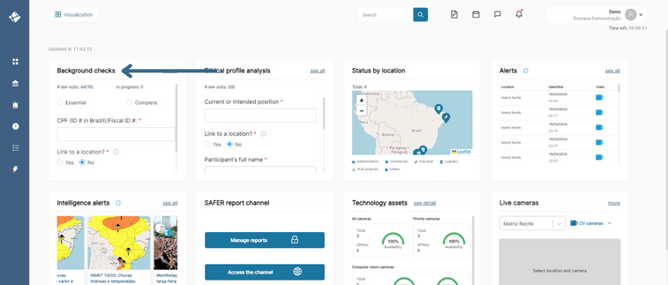
-
Define the type of search you want to conduct, whether it is only with essential information, or if you want to expand the search field and even include sources from international research, such as the FBI, in the complete search.
-
Enter the CPF (Individual Taxpayer ID) you want to verify.
-
Link it to a locality or not, and click on search.
.png?width=423&height=385&name=C%C3%B3pia%20de%20SC%20(1).png)
4. After the process, click on see all.
Once the report is ready, it will appear in view all. This may take about 10 minutes to 12 hours, depending on the amount of information captured.
-Jul-17-2024-09-04-39-8460-PM.png?width=577&height=220&name=SC%20-%20Atividades%20-%20Tarefas%20(5)-Jul-17-2024-09-04-39-8460-PM.png)
5. To view the generated report, click on it.
-Jul-17-2024-09-07-33-1537-PM.png?width=329&height=690&name=SC%20-%20Atividades%20-%20Tarefas%20(6)-Jul-17-2024-09-07-33-1537-PM.png)
6. To check the sources that have alerts, click on the ↓ located to the left of the subcategories.
7. If you wish, go to the end of the report and click on export to download it as a PDF.
How to export a report
8. Select the report you want to download
9. Scroll to the bottom of the screen
10. Click on export
How to export reports in bulk
11. Click on select
.png?width=670&height=80&name=SC%20-%20Registro%20de%20eventos%20(40).png)
12. Choose which searches you want to export
.png?width=670&height=61&name=SC%20-%20Registro%20de%20eventos%20(41).png)
13. Click on download
.png?width=670&height=89&name=SC%20-%20Registro%20de%20eventos%20(42).png)
Research Sources
To check the research sources, click here.