
Stay alert! If you do not see some functionality described in the tutorial in the system, do not worry. This is due to your access profile and the plan contracted by your company.
Users are all the people who will be registered on the platform.
-1.png?width=670&height=287&name=SC%20-%20Atividades%20-%20Tarefas%20(9)-1.png)
1. In the sidebar menu, hover over the administration module and click on Users.
2. To add a user, click on + Add.
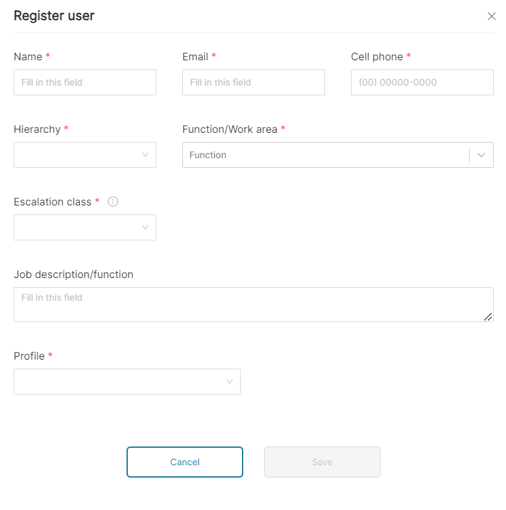
3. Fill out the form.
4. Click Save.
How to export users
.png?width=670&height=287&name=SC%20-%20Atividades%20-%20Tarefas%20(10).png)
5. After selecting the desired filters, click on Export to Excel.
.png?width=670&height=315&name=SC%20-%20Atividades%20-%20Tarefas%20(11).png)
6. Hover over the sidebar menu, and in administration, select Downloads.
.png?width=670&height=286&name=SC%20-%20Atividades%20-%20Tarefas%20(12).png)
7. Press Download to download your Excel file with the users.
How to edit user permissions
-Jul-14-2024-01-55-15-2993-PM.png?width=371&height=433&name=SC%20-%20Atividades%20-%20Tarefas%20(5)-Jul-14-2024-01-55-15-2993-PM.png)
After selecting the user's profile, the default system permissions will appear below. You can grant or revoke permissions as follows:
8. Click on the permission box in the system and add the resources the user will have access to.
9. Click on the X, located next to the name of the resource, to revoke the access permission.
10. Click save to finish.